Localizating museum panels: Monterey’s first Chinese immigrants
Copyright Disclaimer: under section 107 of the Copyright Act of 1976, allowance is made for “fair use” for purposes such as criticism, comment, news reporting, teaching, scholarship, education, and research. This project is a proof-of-concept, and as such does not represent nor infringe on the creator(s) in any way.
Introduction
If you live in Monterey and have been to the Pacific Grove Museum of Natural History, you must have noticed a little exhibit there about the history of Chinese fishermen who arrived in Monterey in the 1800s. They were the first Chinese immigrants in town and their stories went untold.
I was touched reading the history but unfortunately there was no Chinese translation to those exhibits. I plan to provide simplified Chinese translation to those panels so that local Chinese community can learn about this history even if they cannot read in English, especially the elders and the children.
Apart from translation, the other thing I’m going to do is redesigning the layout of panels. According to the museum, they were not looking for bilingual panels as there was simply not enough space on the wall to be put on. What they had in mind was something lighter like pamphlets. Therefore, my objective was not to make the pages as close to the original as possible.
Workflow
1. Prepare assets
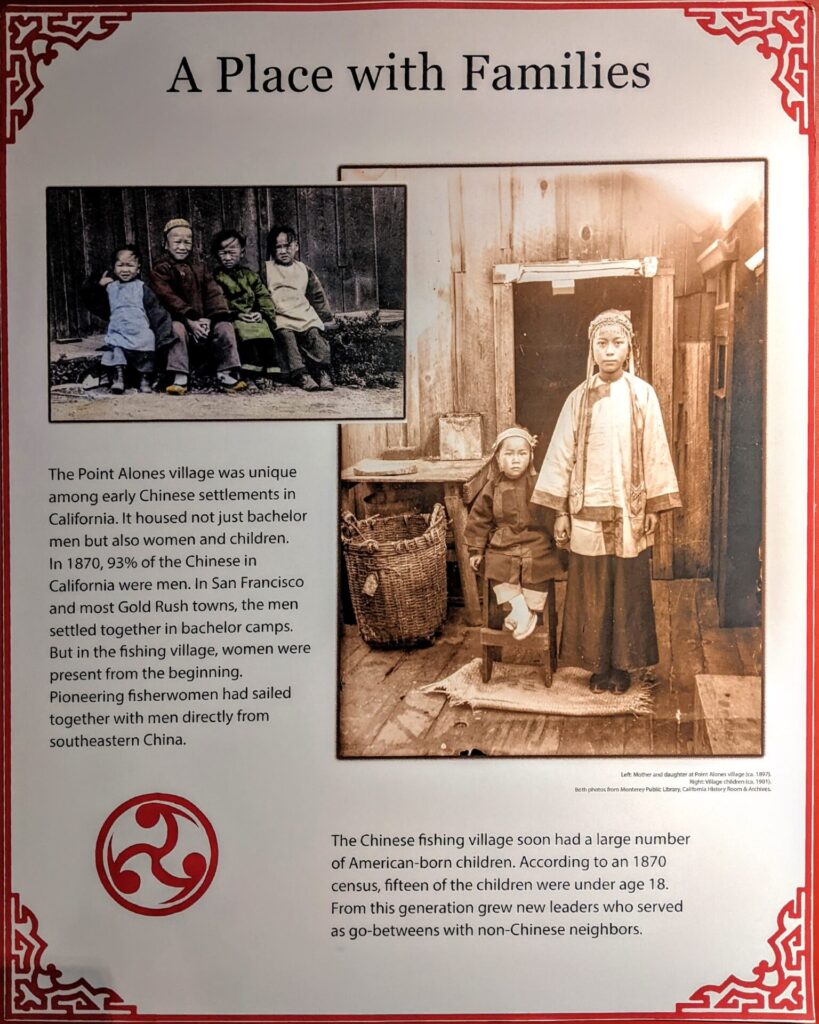
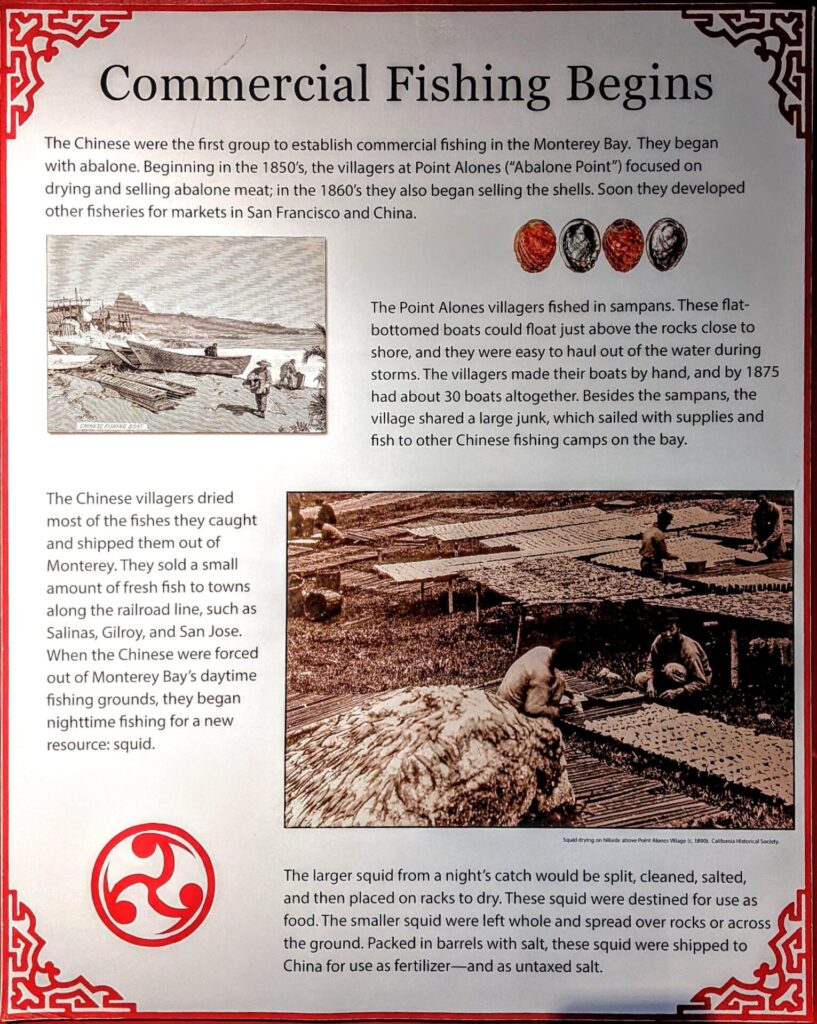
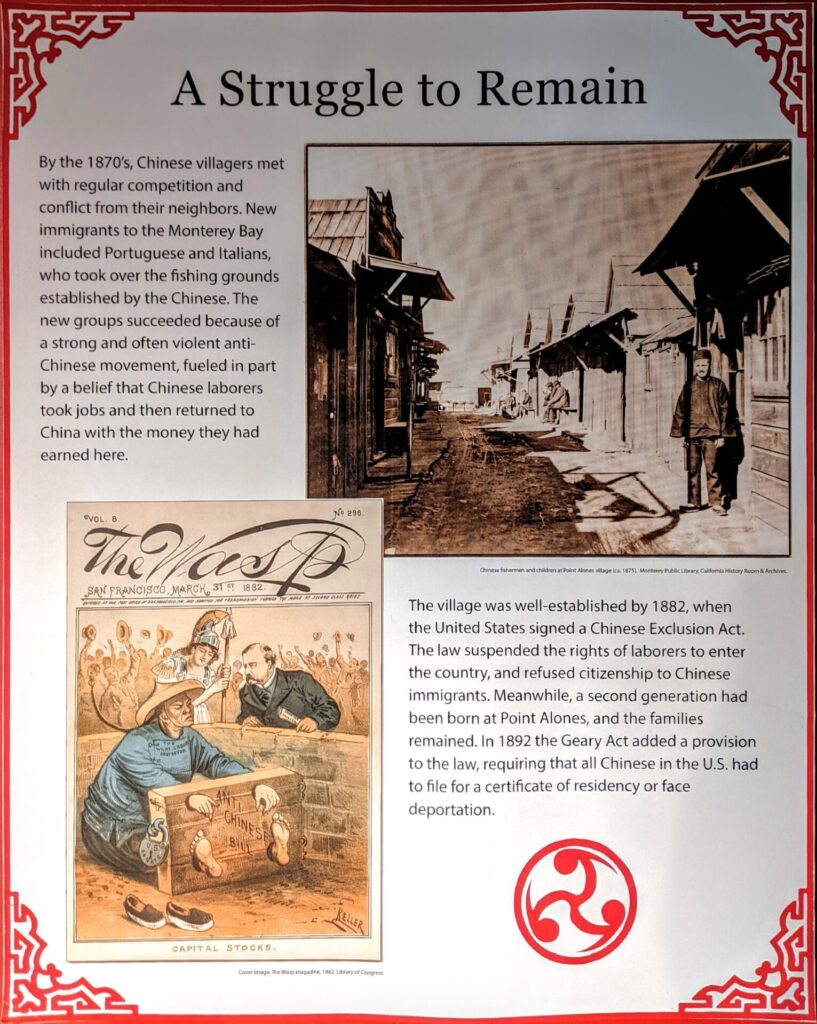
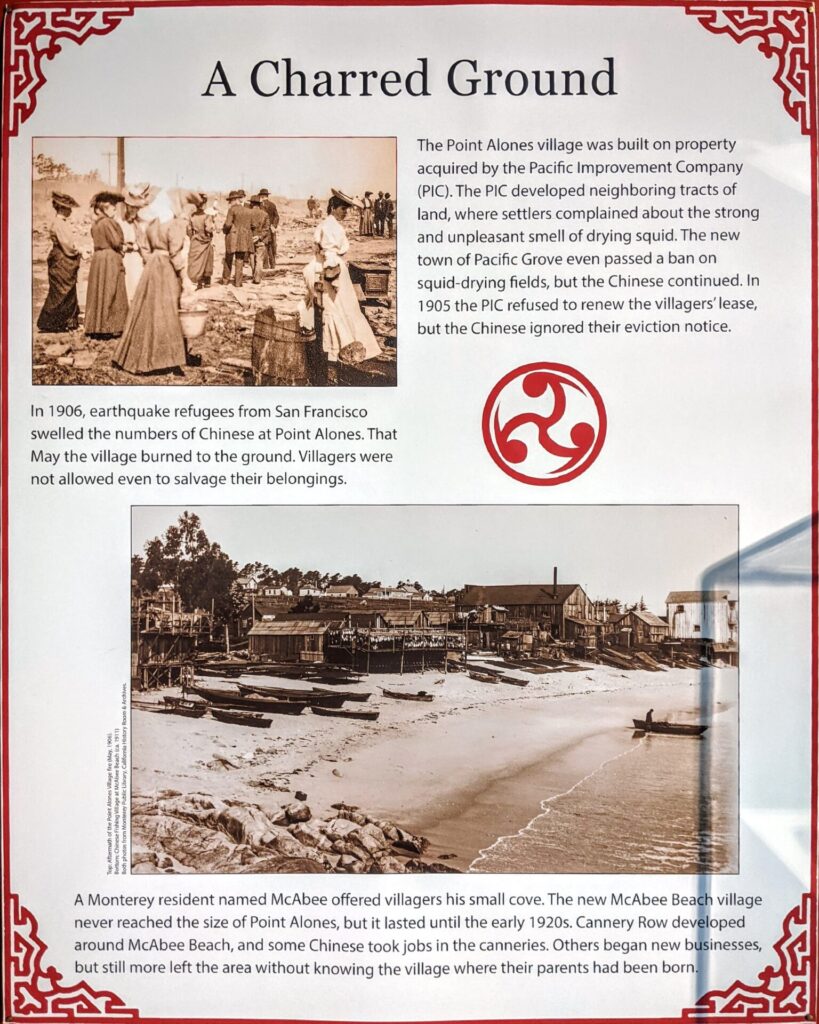
There are six panels in total. When I first visited the museum, I took some photos of those panels without thinking that one day I would use them for a project. As you can see from these pictures, the exhibit was in a corner with relatively poor lighting.
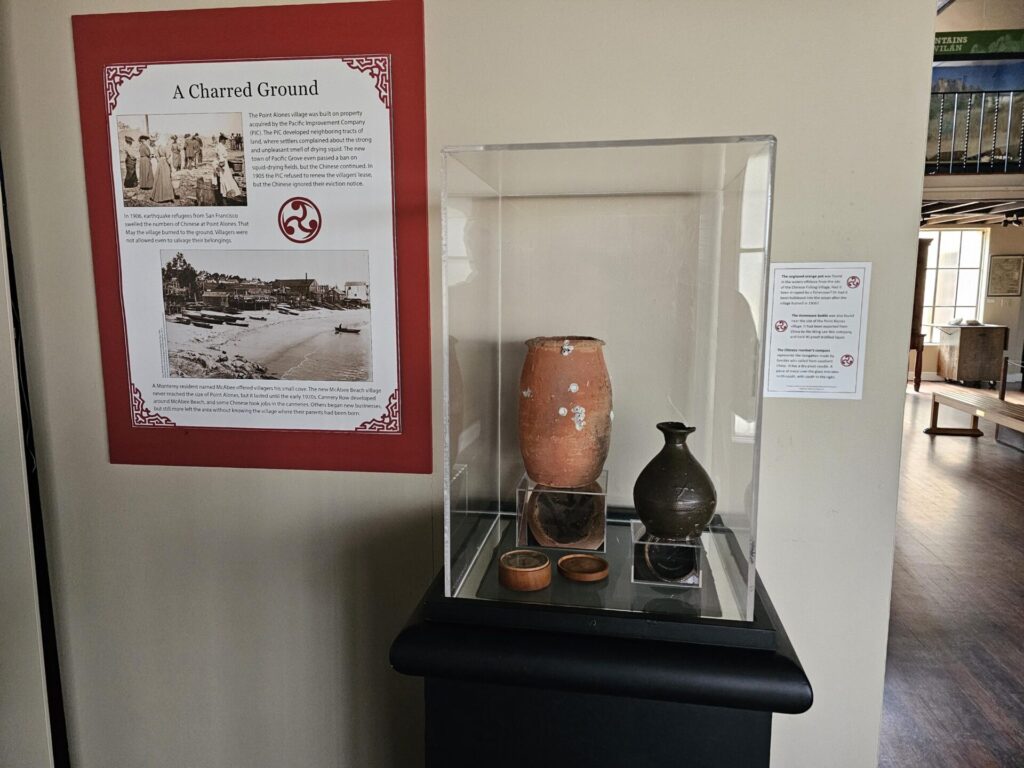
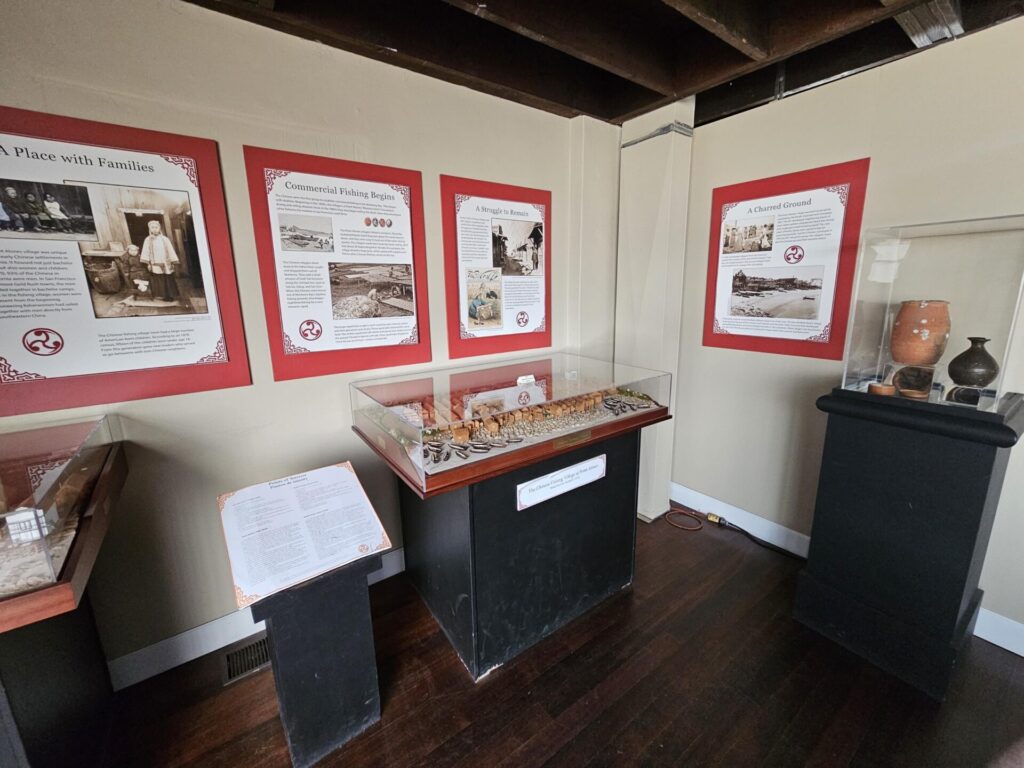
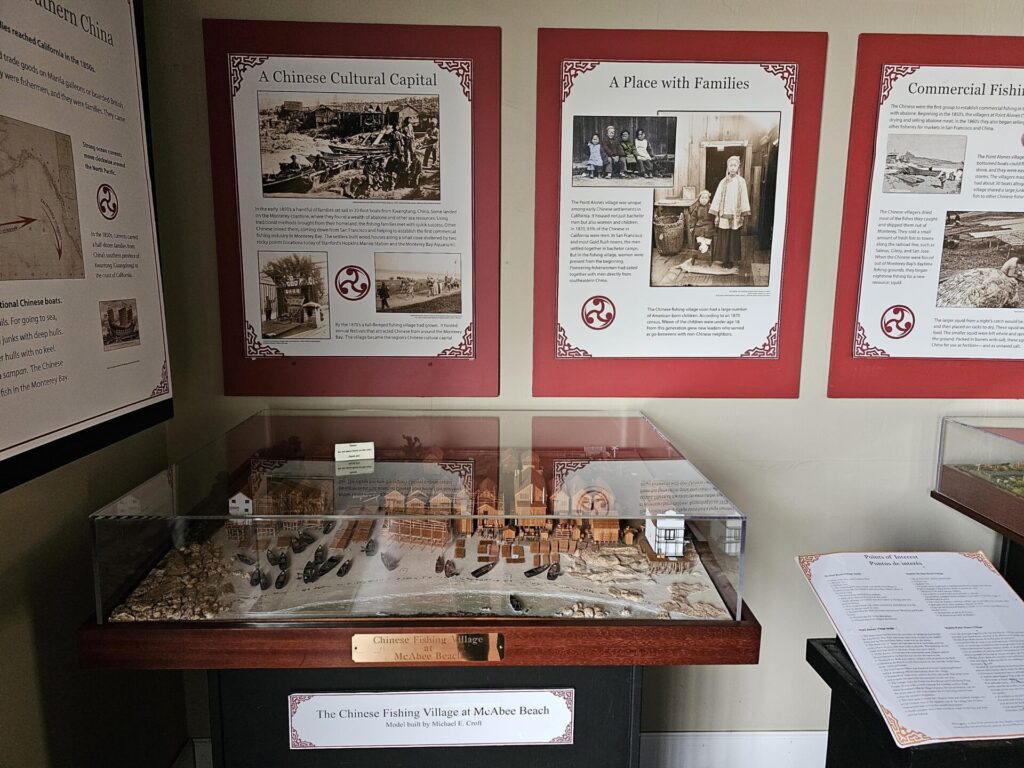
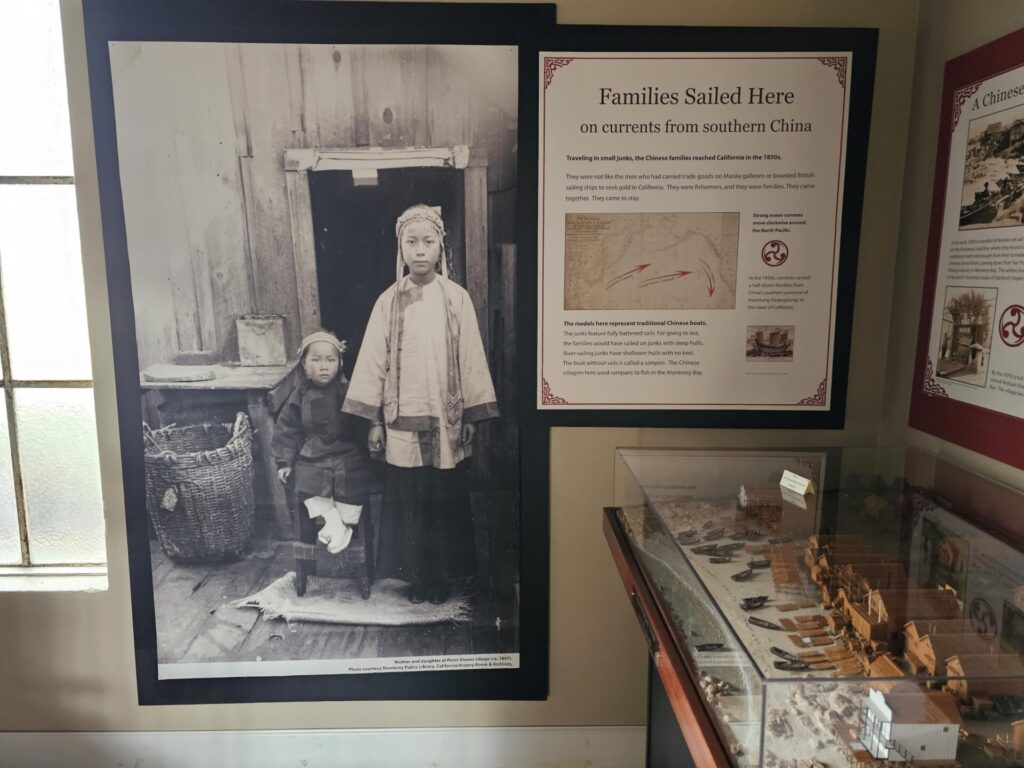
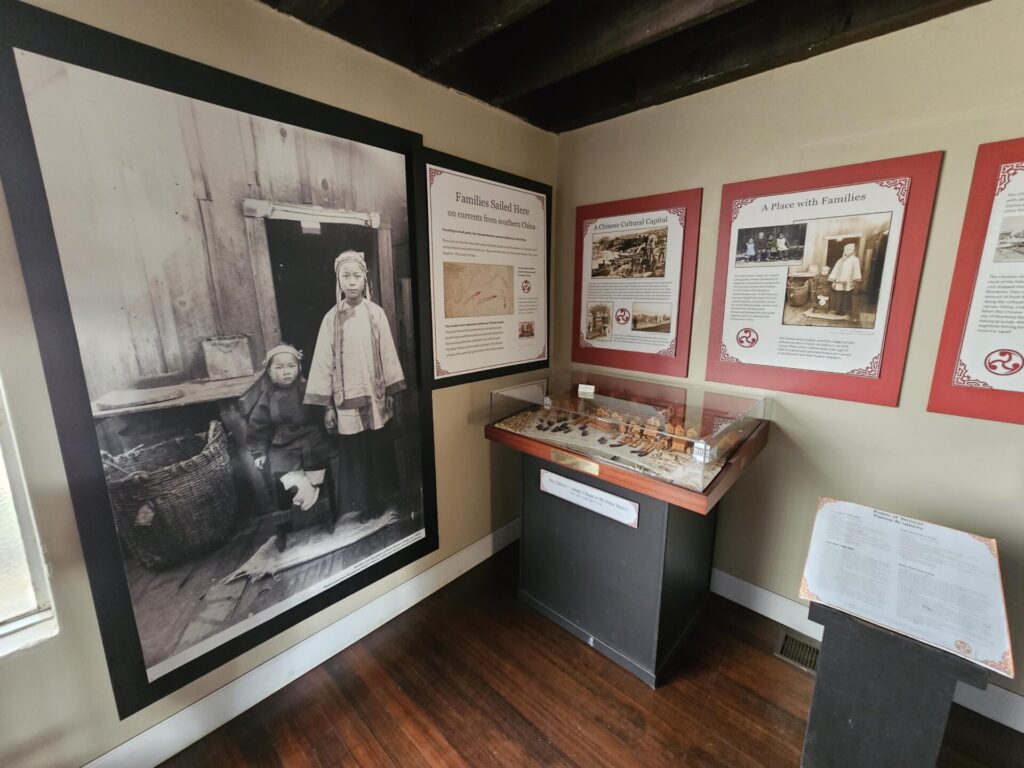
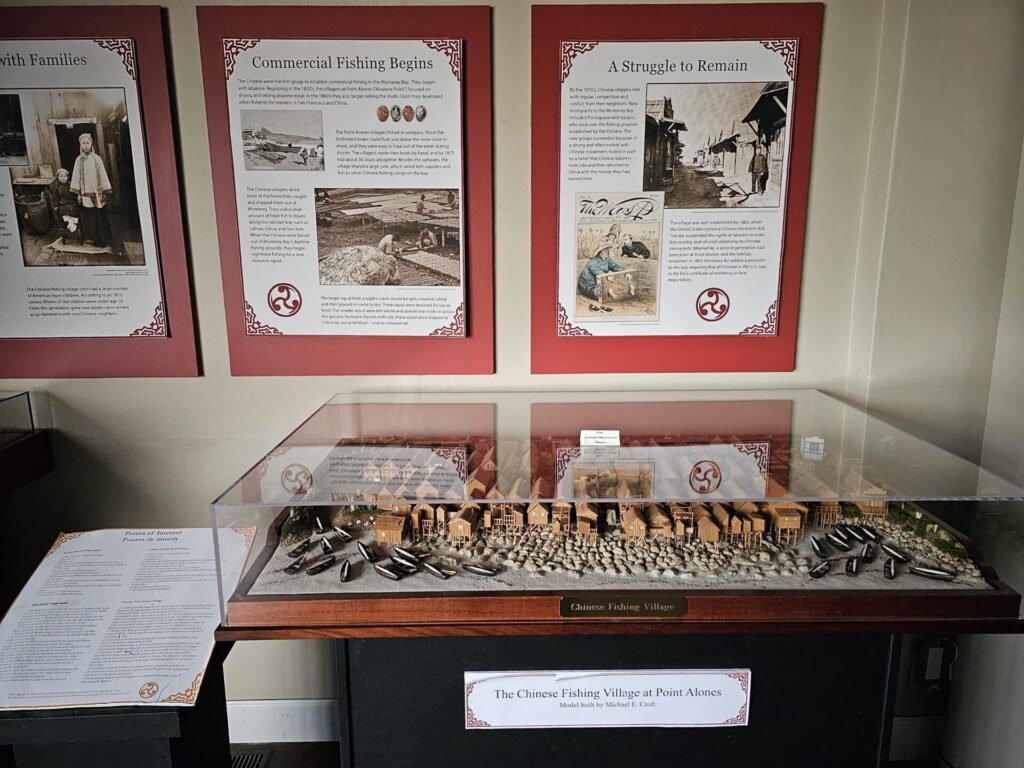
After I made up my mind that I wanted to do this project, I contacted the museum for editable files. The museum was very responsive, but unfortunately, they couldn’t find what I asked for in their system. All they could provide was another set of clearer, close-up photos, plus the verbatim transcript in a .doc file. I admit the situation is not ideal, but this could be one of the scenarios in the real world. I decided to work with what I have and see how that goes.
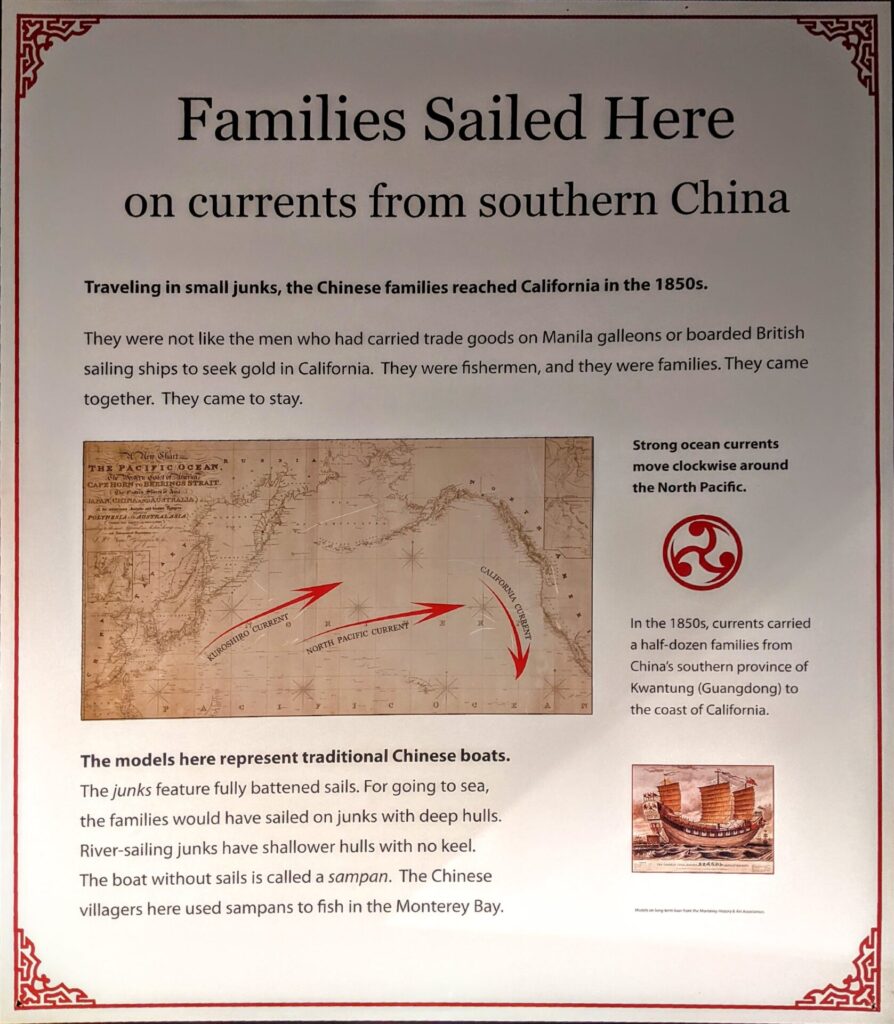
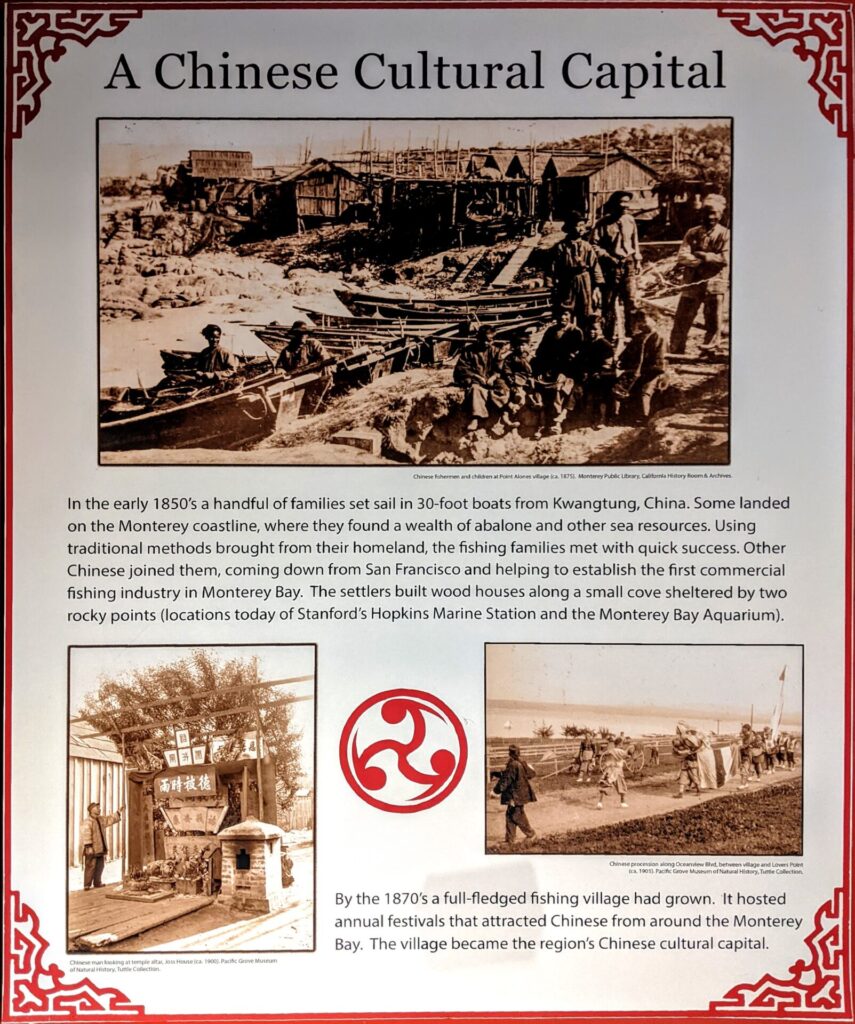
2. Translation
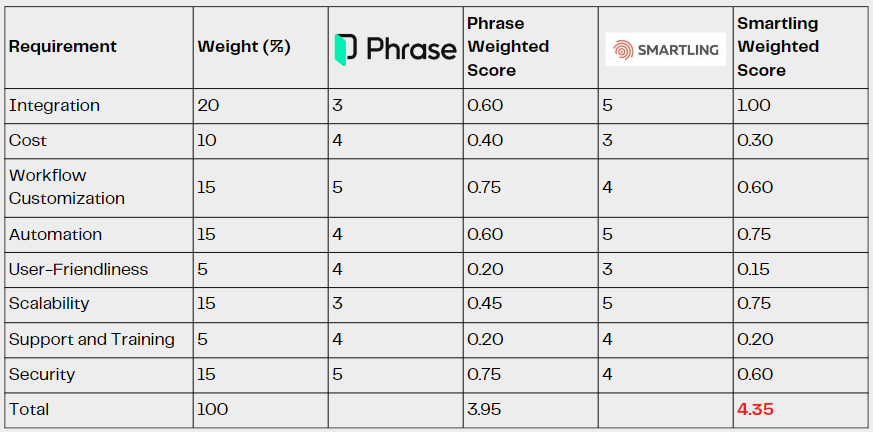
Since the verbatim transcript of the panels is already good to use, I was saved from extracting the text from the photos. Normally, we would need to hire human translators for this kind of translation and probably a subject matter expert (SME) for review and consultancy, but for the purpose of simulation and for the sake of time, I’ll just use machine translation on Phrase and perform one round of quality assurance on the result to fix the most obvious mistakes.
The rest is fairly straightforward:
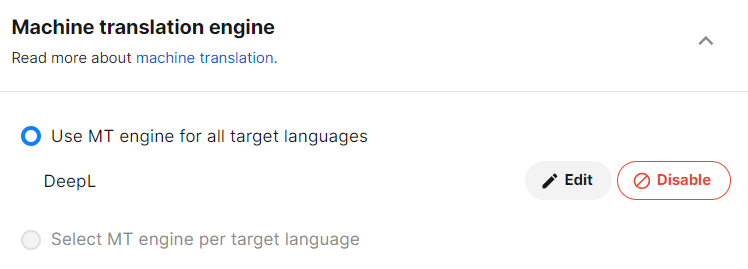
- Create a project on Phrase with machine translation engine enabled;
- Create a new job in the project and upload the .doc file;
- Let Phrase do its thing and download the result.
3. Redesign the layout
3.1 Create an Indesign Project
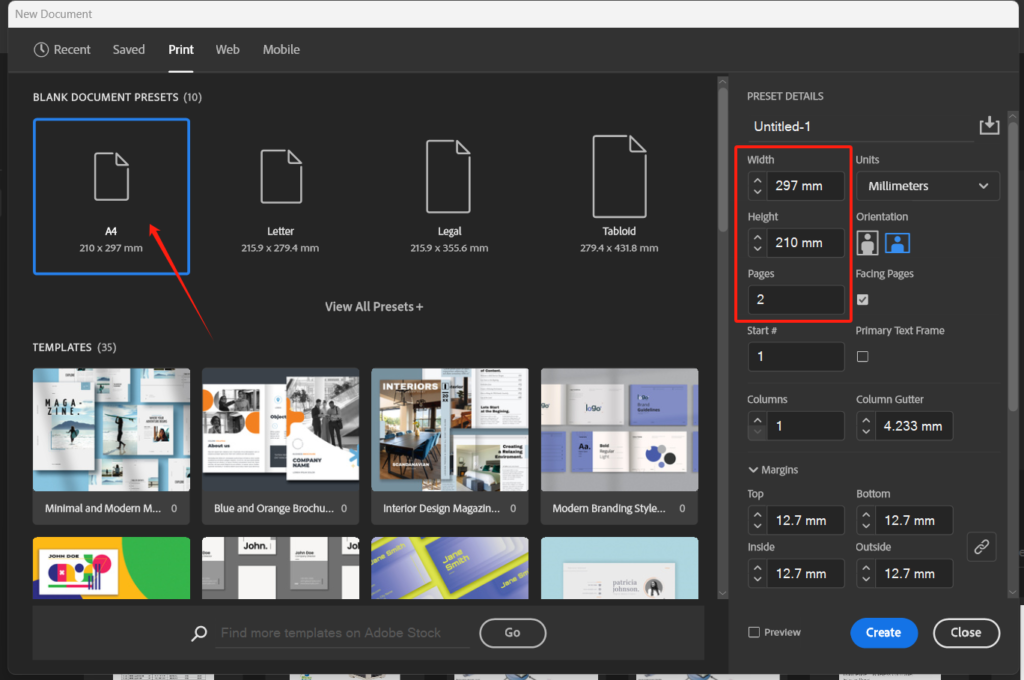
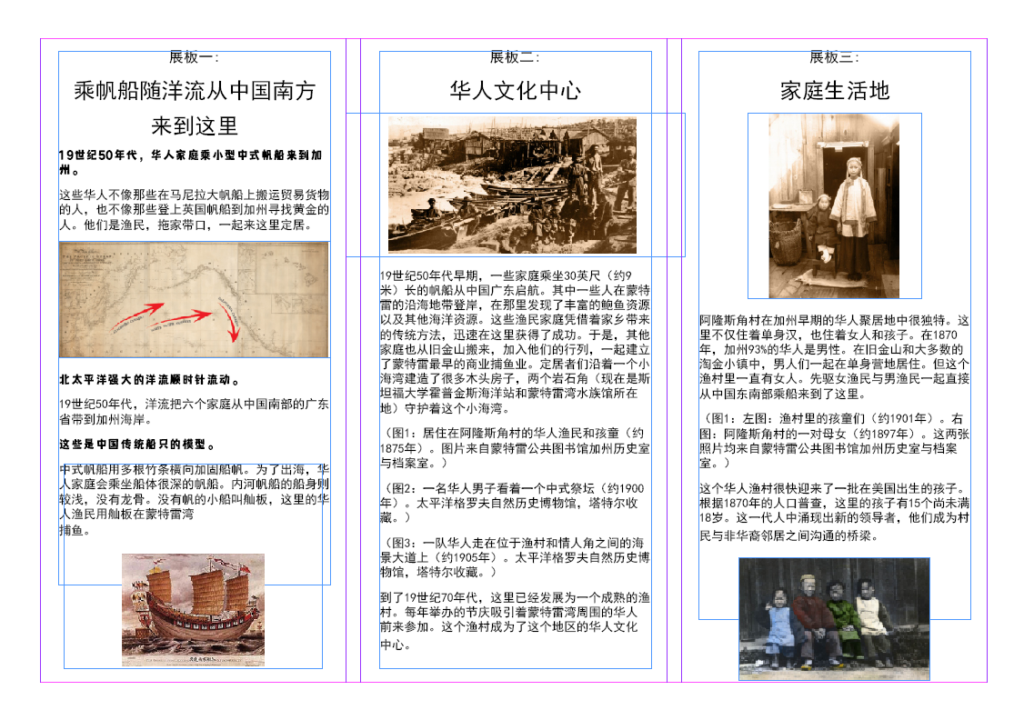
One common size of pamphlet is a three-fold of an A4 page. Considering there were 6 pages to design, it would be convenient to make two three-fold A4 pages. In Adobe Indesign, we can choose A4 as the page size and switch the height and width. Then select 2 pages and it would be all set.
3.2 Page settings
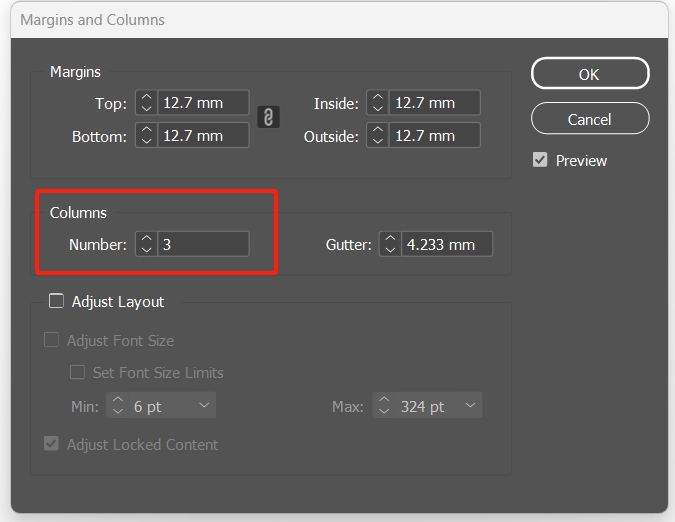
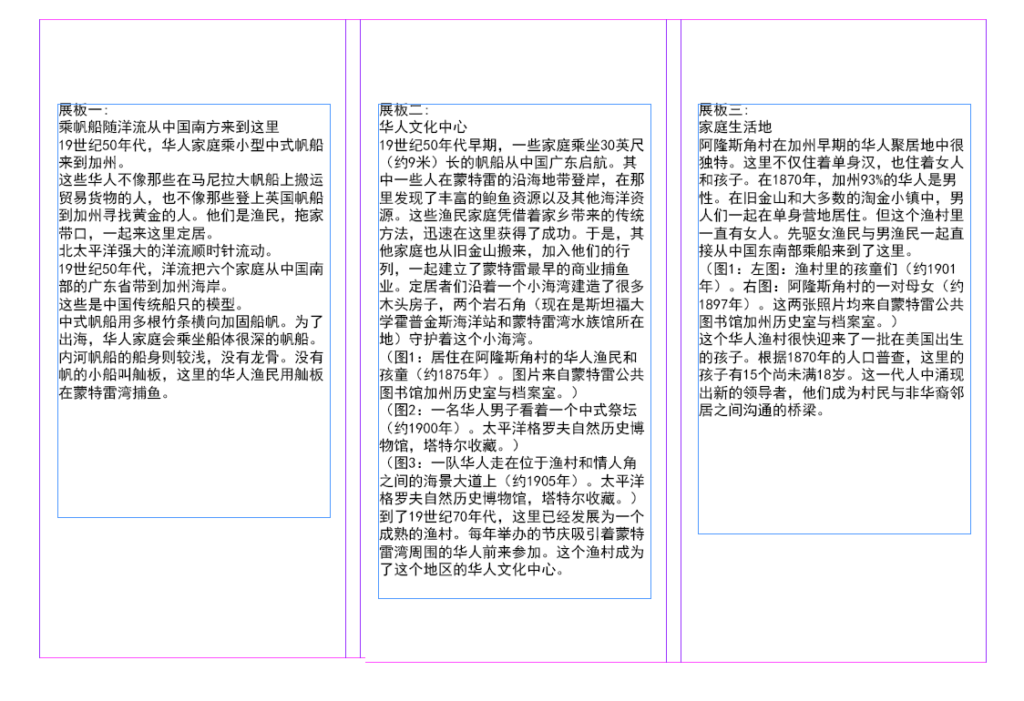
In the top menu “Layout – Margins and Columns”, type “3” in the columns. Then the page would be automatically divided into three columns. Use Type tool to drag three text boxes and paste the translated Chinese text. Change the font to a proper Chinese one to avoid “tofu”.
Next, a couple of steps were followed:
- Create new Paragraph Styles and apply each style to corresponding section;
- Adjust spaces between paragraphs;
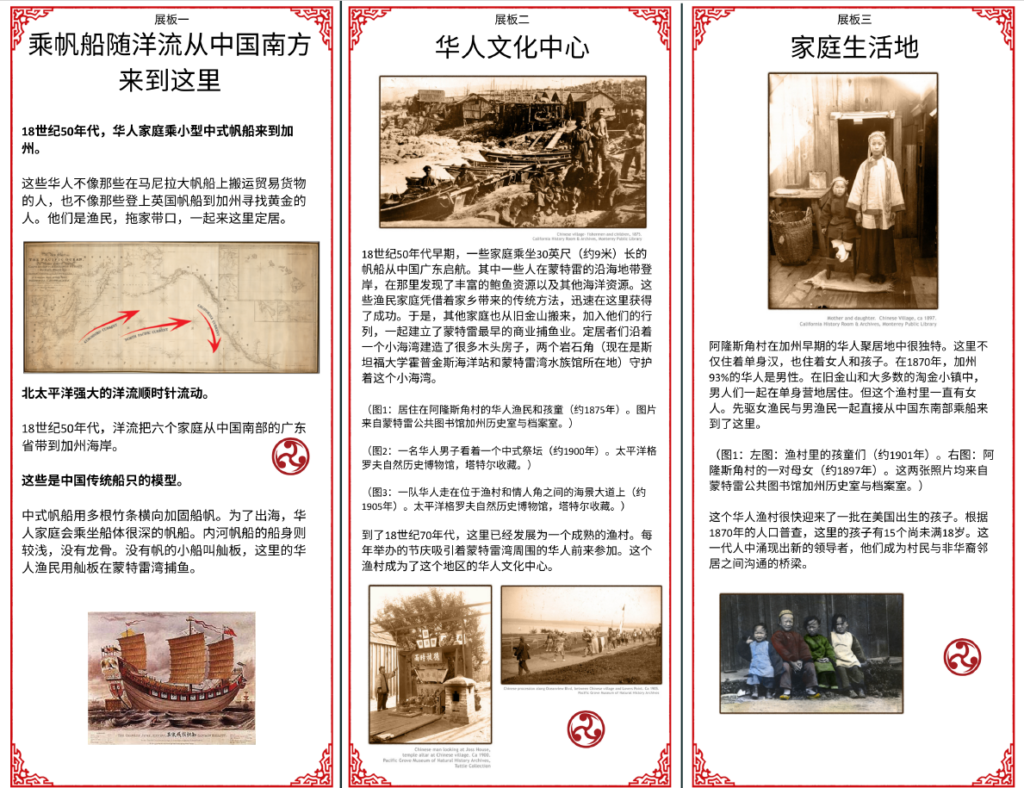
- Add pictures and adjust the layout.
3.3 Clean-up
Takeaways
Using InDesign for creating museum pamphlets ensures consistent and visually appealing layouts. Its robust typography and image integration tools provide precise control over design elements. However, as someone who’s used to Microsoft Word, InDesign sometimes can be a little bit difficult to get the hang of.
Source
https://www.pgmuseum.org/pacific-groves-chinese-fishing-village